
 An official website of the United States Government


Multifactor Authentication Guide
Step-by-step instructions for installing and setting up Okta Verify to complete multifactor authentication when signing in to HUD's Secure System.
If you do not have the ability to set up the desktop version of Okta Verify, click here to jump to the mobile setup guide.
Desktop Setup & Installation
For maximum security, install Okta Verify directly onto your primary work computer (Windows or Mac). This helps prevent phone-based phishing attacks.
- Enrollment Rule: FastPass must be set up on the specific device you are using to sign in. If you are currently logging in from a desktop, you must complete the setup on that desktop.
Step-by-Step Desktop Guide
For the strongest safety, install this directly onto the Windows or Mac computer you use for work. Doing this, blocks phone-based phishing scams completely.
For IT Administrators, please refer to this guide for installing Okta Verify directly.
-
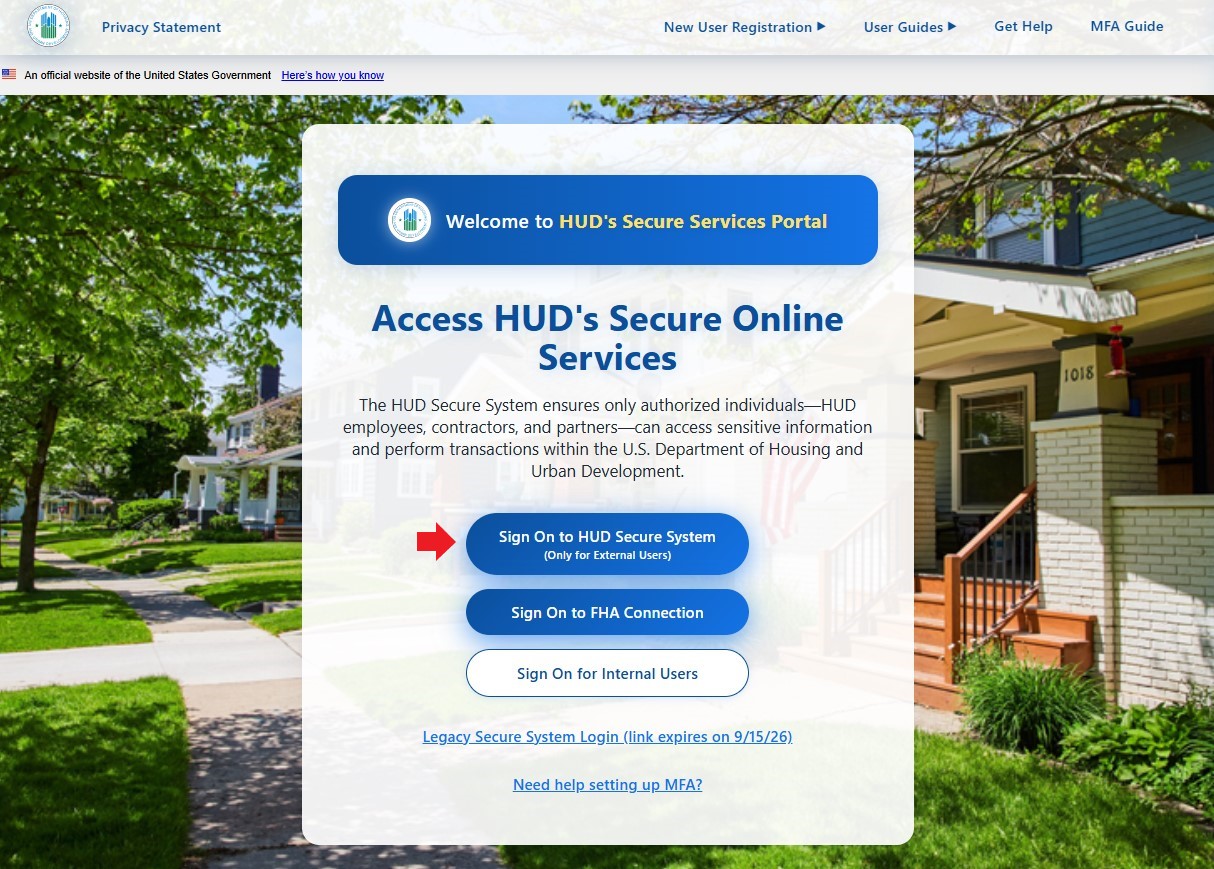
Open your internet browser, navigate to hudapps.hud.gov/hud/ and select "Sign On to HUD Secure System".
-
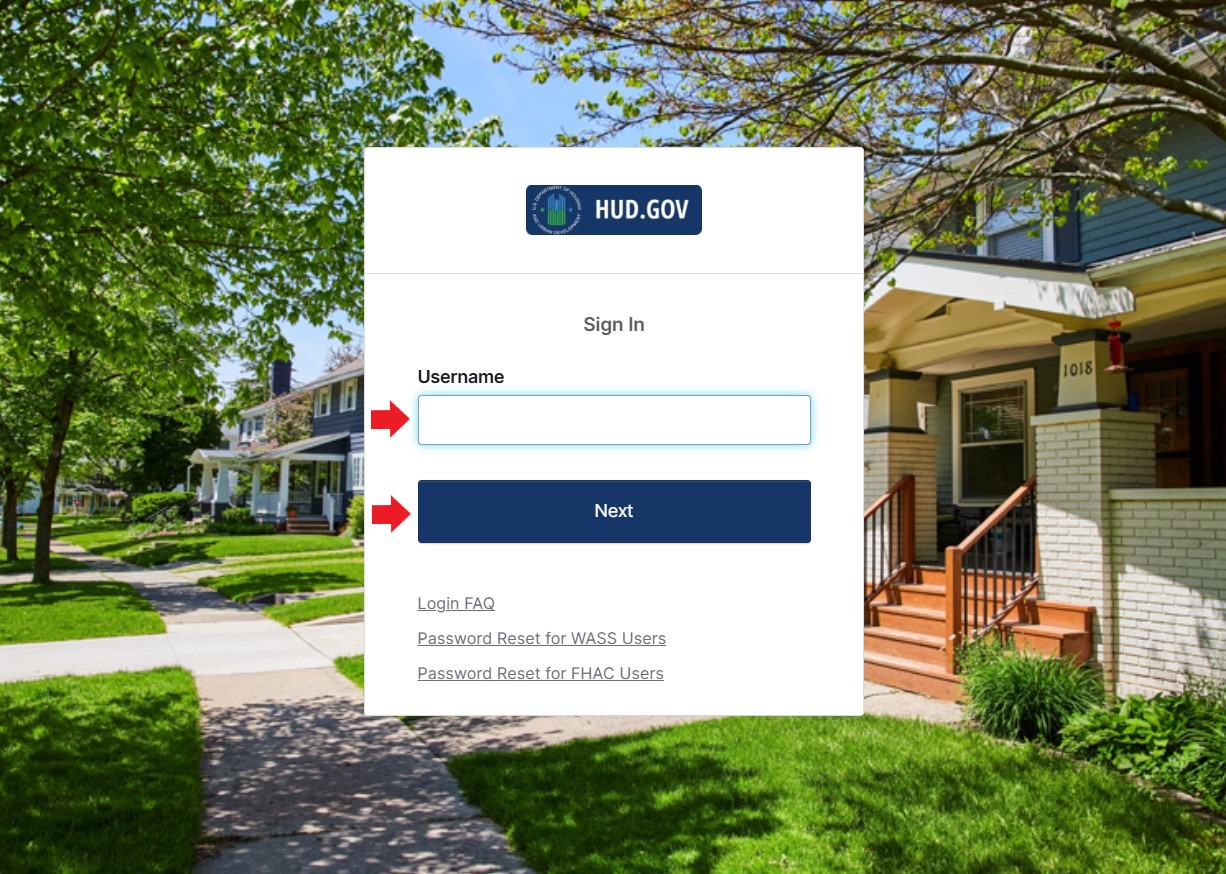
Enter your HUD Username in the “Username” field and select the “Next” button.
-
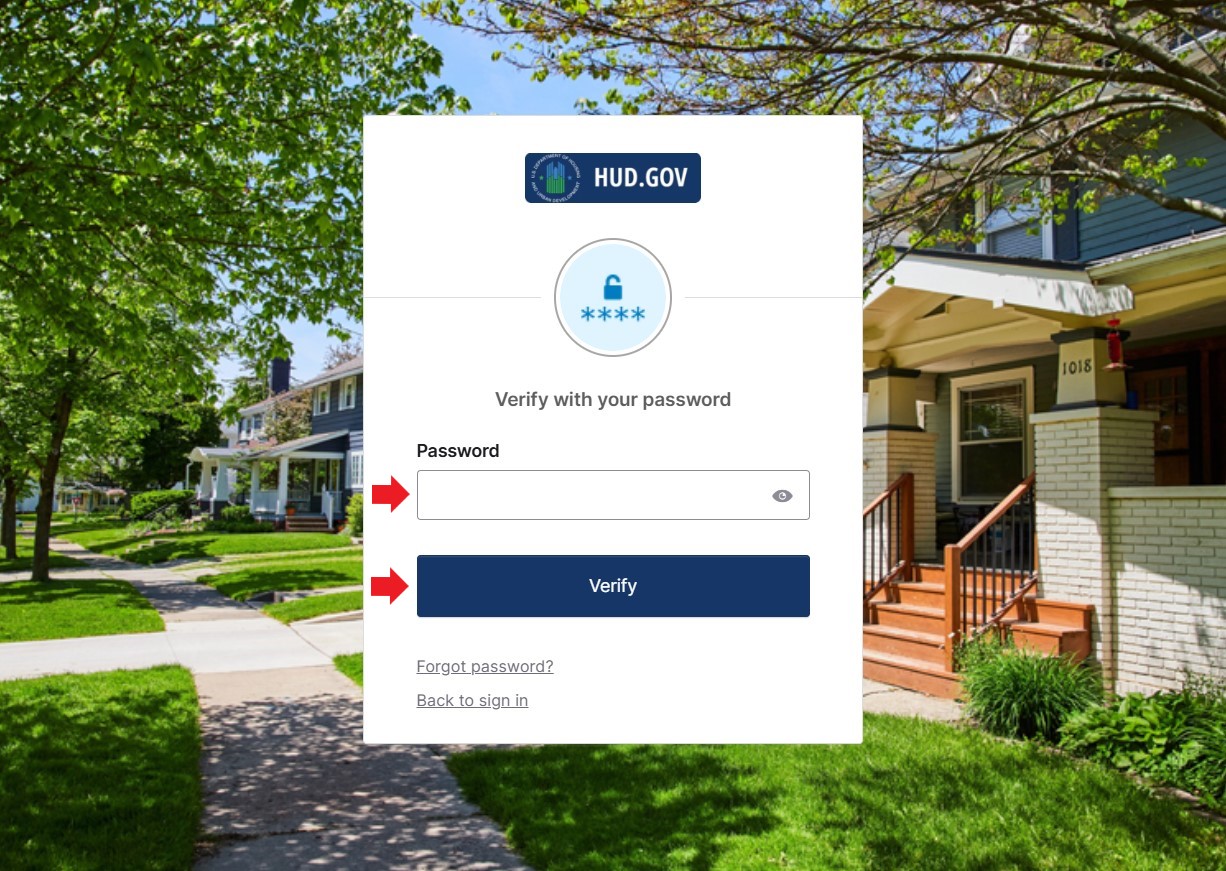
Enter your user password in the “Password” field and select the “Verify” button.
-
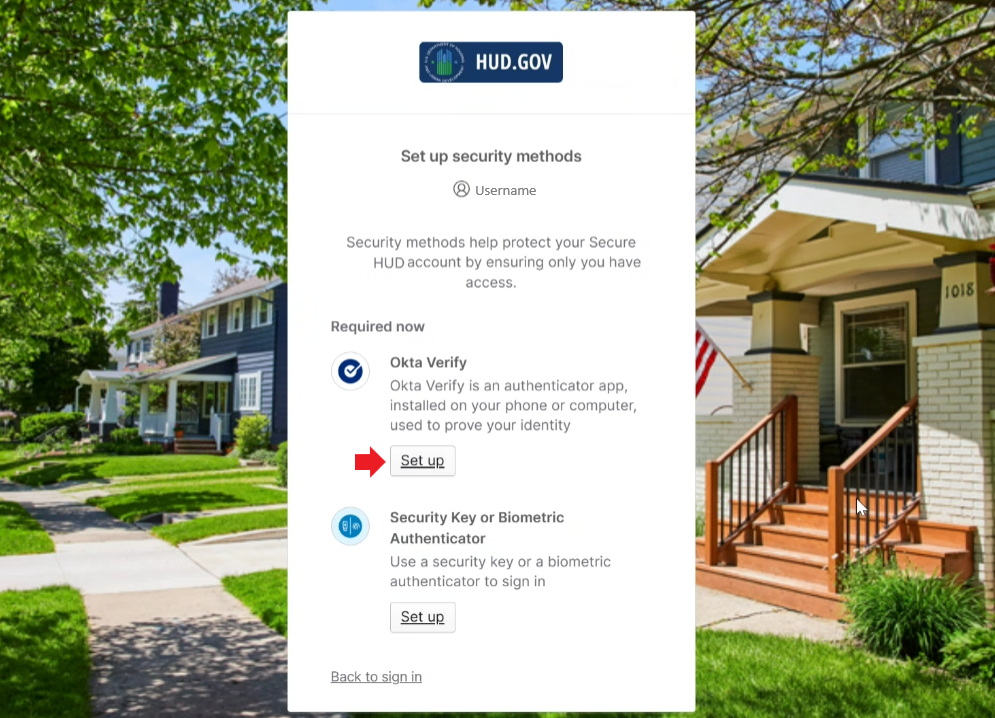
Select "Set up" under Okta Verify.
Note: If you choose to use the security key or biometric option, HUD will not be able to provide any official support. HUD's recommendation is to use Okta Verify.
-
Select "Download" on the screen to install the software, then click "Launch Okta Verify". Once the software is installed and running, select “Set up Okta Verify”.
Note: Administrator rights on your computer are required to install the Okta Verify application. If you are not able to install the Okta Verify application, please consult your organization's IT Admin.
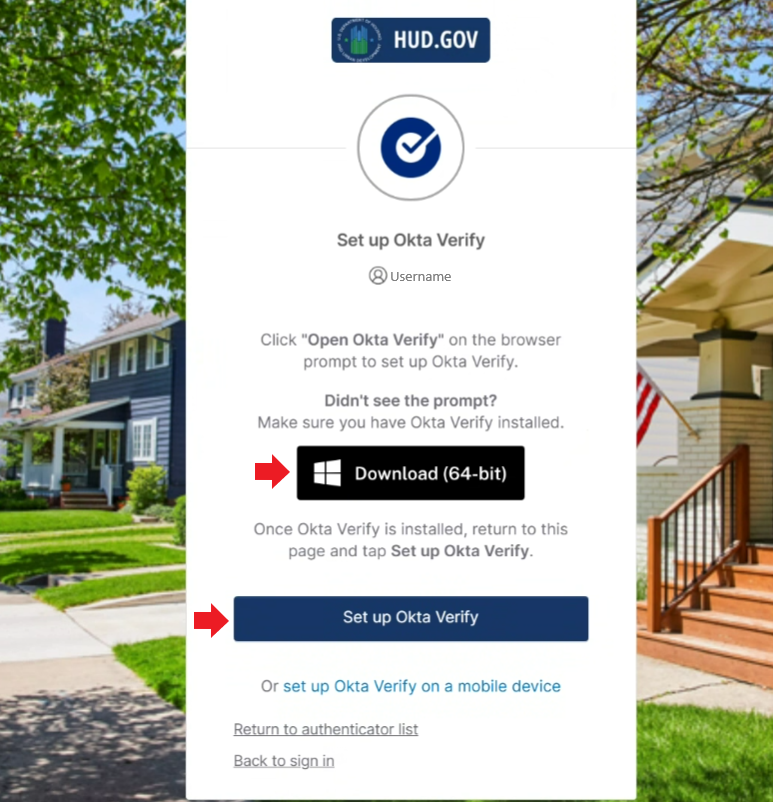
-
Select "Add Account".
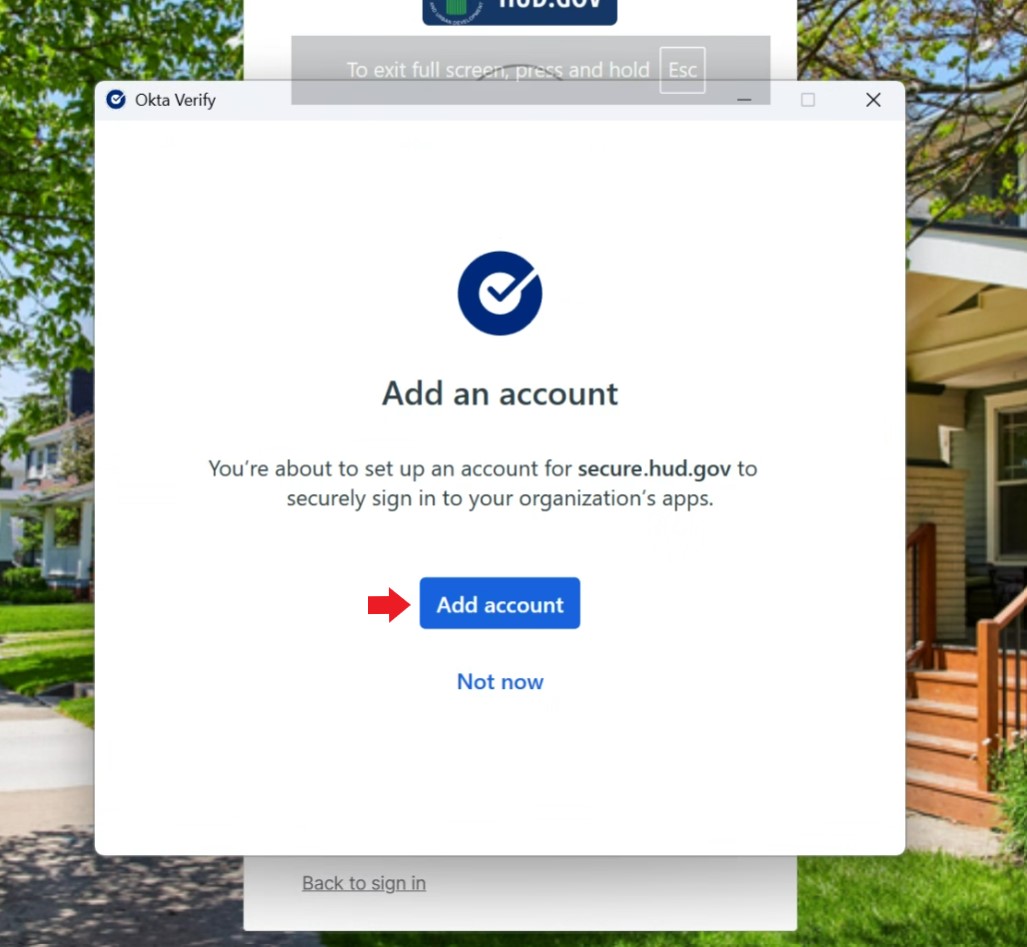
-
Select “Set as default”.
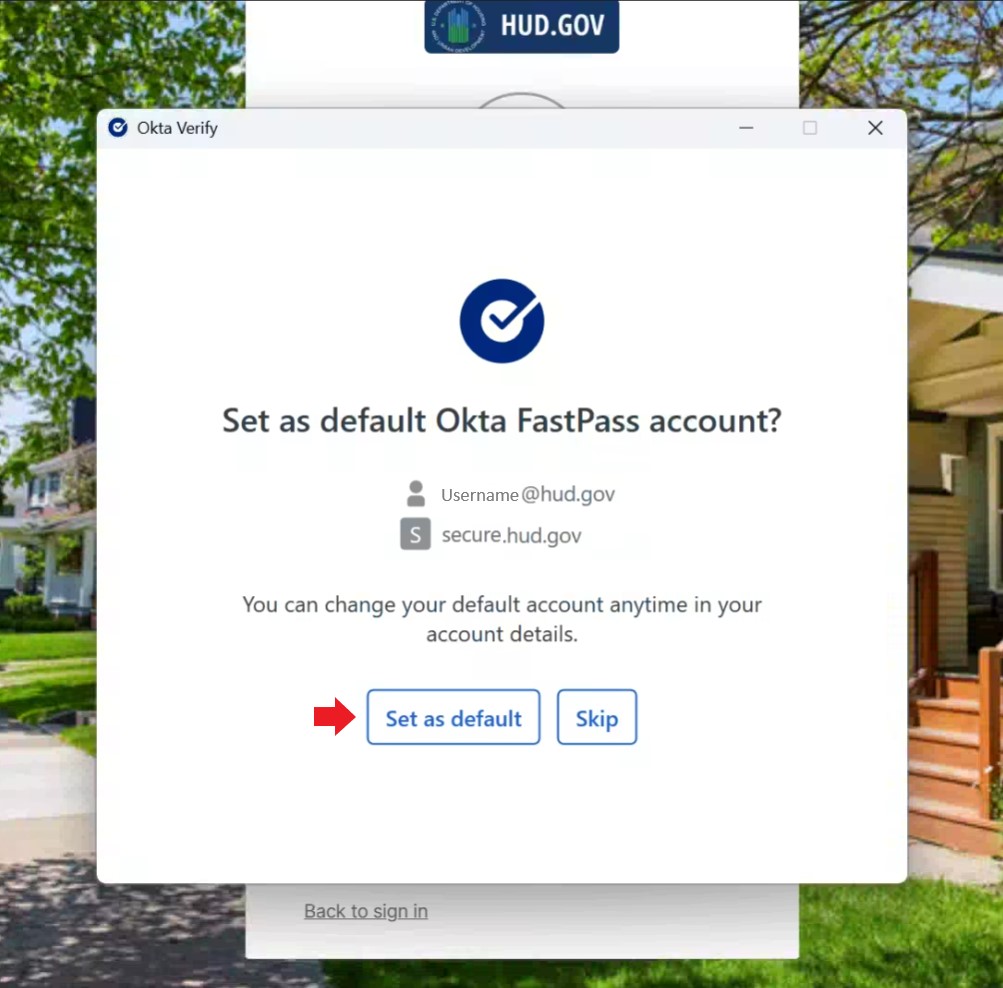
- A new browser tab will open. Type in your HUD User ID, click Next, enter your password, and click Verify.
- Your computer might ask to use your face, fingerprint, or a quick PIN. To keep things simple, we recommend clicking "Not now" (HUD cannot fix your computer's scanner if it stops working).
- You are done! You will see a green checkmark saying Account added. Leave the app installed on your machine.
For detailed instructions, please refer to the FAQ Page.
If you need help, please contact HUD Secure Systems Support Services:
Phone: 1-888-245-4860
Email: REAC_TAC@hud.gov
Mobile Setup Alternative
If you choose to use a mobile phone to access Secure Systems, you must initiate your initial login to Okta FastPass directly from that mobile device.
-
Open your internet browser on your mobile device, navigate to hudapps.hud.gov/hud/ and select "Sign On to HUD Secure System".
-
Enter your HUD Username in the “Username” field and select the “Next” button.
-
Enter your user password in the “Password” field and select the “Verify” button.
-
Install the App: During your initial FastPass setup on mobile, follow the prompts to install the Okta Verify app directly onto your device (no QR code needed).
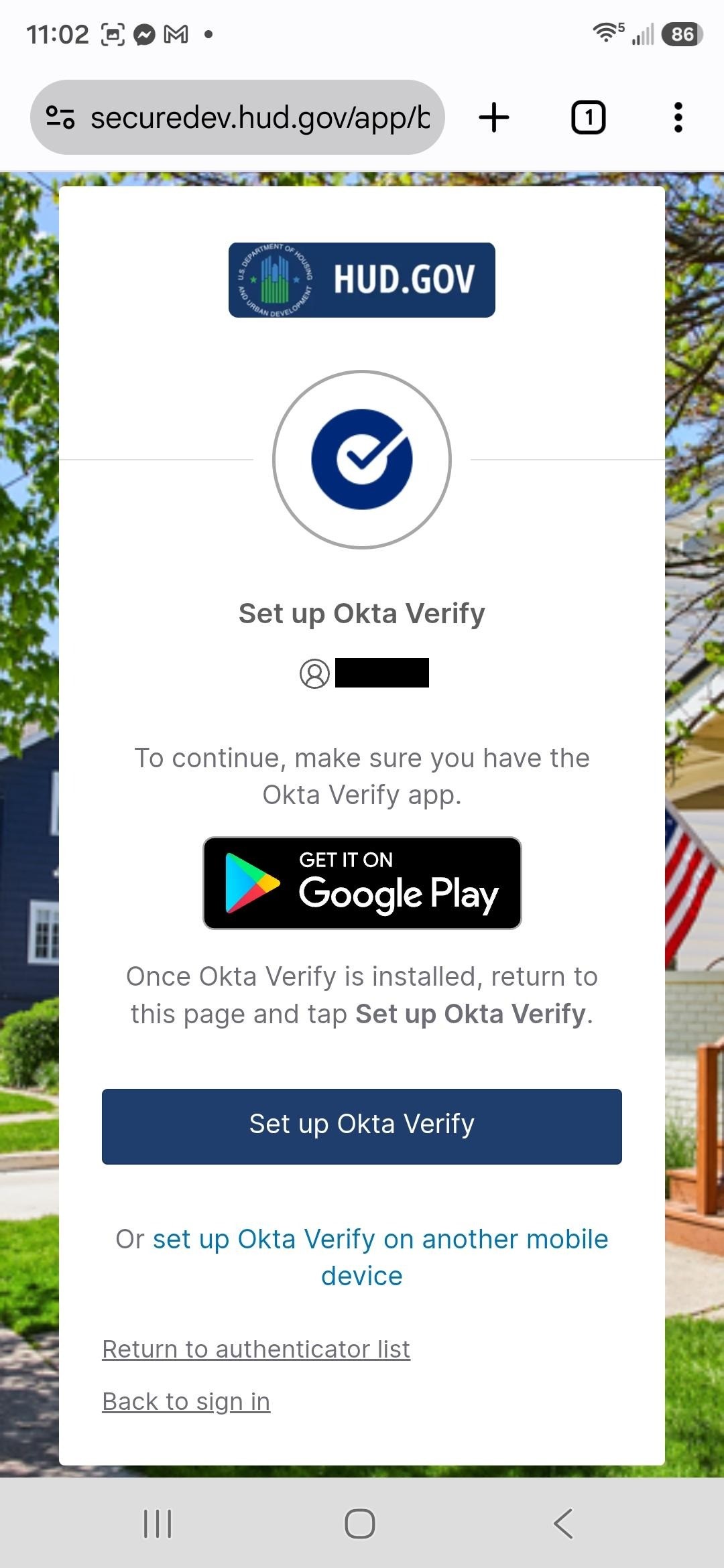
- Complete Enrollment: Once installed, return to the browser page and tap "Continue as [your ID]" to finish setup.
For detailed instructions, please refer to the FAQ Page.
If you need help, please contact HUD Secure Systems Support Services:
Phone: 1-888-245-4860
Email: REAC_TAC@hud.gov
If you would like to set up a second device with Okta Verify, please contact the helpdesk.
If you would like to set your MFA to its default settings, please contact the helpdesk.