
 An official website of the United States Government

Frequently Asked Questions
Find answers to common questions about the HUD Enterprise Identity, Credential, & Access Management (EICAM) Platform.


Getting Started
How to use this guide
This guide includes a list of Frequently Asked Questions (FAQs) related to the HUD Enterprise Identity, Credential, and Access Management (EICAM) Platform including the EICAM Dashboard, Single Sign-on (SSO), Multi-Factor Authentication (MFA), EICAM (Okta) Verification.
Administrators implementing the HUD EICAM platform can customize this guide based on their deployment. The guide includes the specific information:
- Enter your unique organization name to access the HUD EICAM Platform Dashboard. The URL is generally structured as [URL].
- HITS (HUD Information Technology Services) Help Desk: Enter your help desk or IT department details to ensure users can contact you if there are any issues with their HUD EICAM Platform account.
After customization, you can share this guide with your end users when communicating upcoming changes related to HUD EICAM Platform.
What is the HUD EICAM Platform?
The HUD EICAM Platform securely connects employees, partners, and customers to the applications and tools they need through a single sign-on.
How do I sign in to the HUD EICAM Platform?
Access your HUD EICAM Platform sign-in URL at https://hudapps.hud.gov/hud/. Contact HUD Information Technology Services (HITS) Help Desk (Phone: 1-888-297-8689 or 202-708-3300) in case of any issues.
Note to administrators: Provide the HUD EICAM Platform sign-in URL.
Does the HUD EICAM Platform work on my mobile device?
You can access the HUD EICAM Platform from your mobile device by navigating to https://hudapps.hud.gov/hud/ from your browser. You can launch most applications directly from the mobile dashboard.

Account Access
How do I reset my password as an internal user?
- Sign in to the HUD EICAM Platform Dashboard.
- Enter your username and select Next.
- From the Password page, select Forgot password? The page prompts you to authenticate using additional security methods.
Note: If you do not see the Forgot password? link or the security method is not working, contact HUD Information Technology Services (HITS) Help Desk (Phone: 1-888-297-8689 or 202-708-3300).
How do I reset my password as an external user?
External users can reset their password using the self-service form for their system. Select the appropriate link below:
- Click the link above that corresponds to your system (WASS or FHAC).
- Fill in the required identity verification fields on the form (such as User ID, Last Name, and other requested information).
- Select the confirmation button on the form to submit your request. Your new password will be sent to the email address associated with your account.
Contact HUD Information Technology Services (HITS) Help Desk (Phone: 1-888-297-8689 or 202-708-3300) in case of any issues.
How can I change my password?
Note: This option is available for internal HUD users only. Support for external users is planned for a future update.
- Sign in to your HUD EICAM Platform account using your username and password.
- Once logged in, select your name, which is displayed at the top right corner of the HUD EICAM Platform Dashboard, and select Settings from the dropdown menu.
- In the Change Password section, enter your current password and the new password you’ve chosen. Make sure your password meets the complexity guidelines set by your admin.
- Select Change Password.
If you do not see Change Password, select Edit Profile, if available. You may have to re-authenticate with a password and other security methods configured for HUD.
Contact HUD Information Technology Services (HITS) Help Desk (Phone: 1-888-297-8689 or 202-708-3300) in case of any issues.
Note for administrators: Provide your help desk or IT department details so users can contact you in case of any issues with the HUD EICAM Platform account.
How do I unlock my account?
Contact HUD Information Technology Services (HITS) Help Desk (Phone: 1-888-297-8689 or 202-708-3300) in case of any issues.
Note to administrators: Provide your help desk or IT department details so users can contact you in case of any issues with the HUD EICAM Platform account.
How do I sign in as an internal user?
-
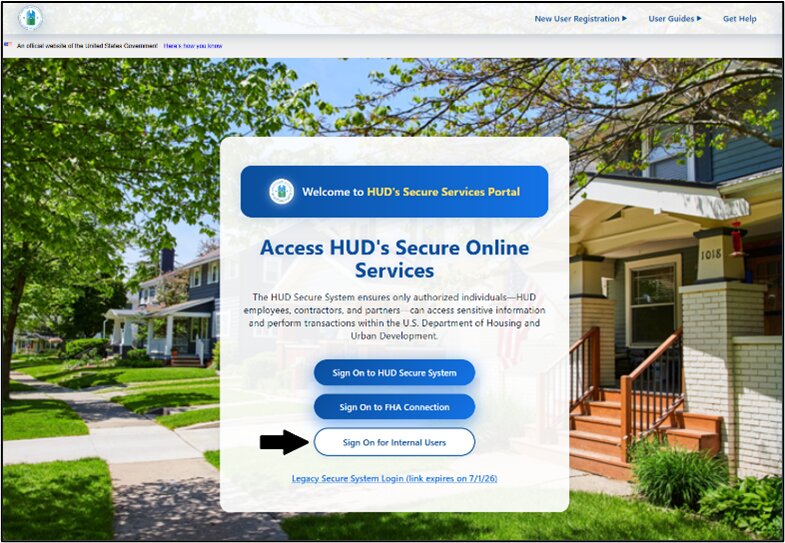
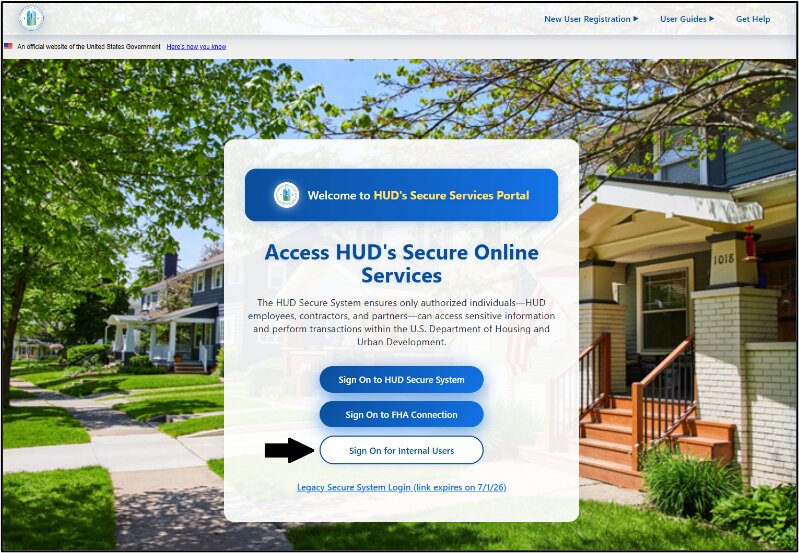
Access the hudapps.hud.gov/hud/ URL, then select the Sign On for Internal Users button.
-
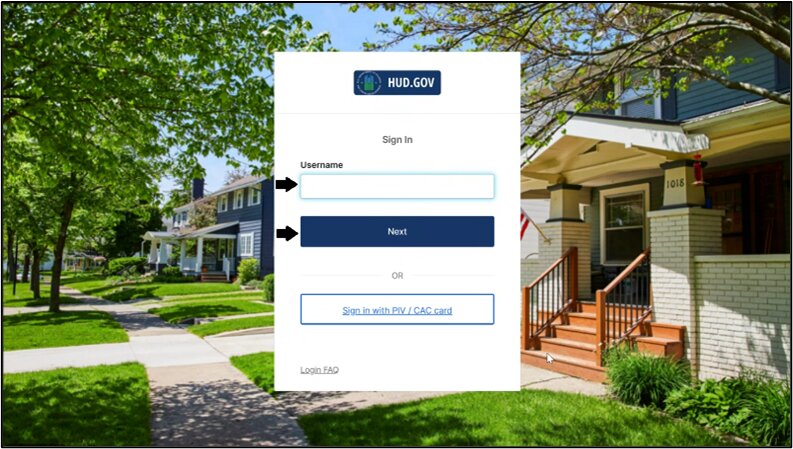
Enter your internal account username, then select the Next button to authenticate with your password.
-
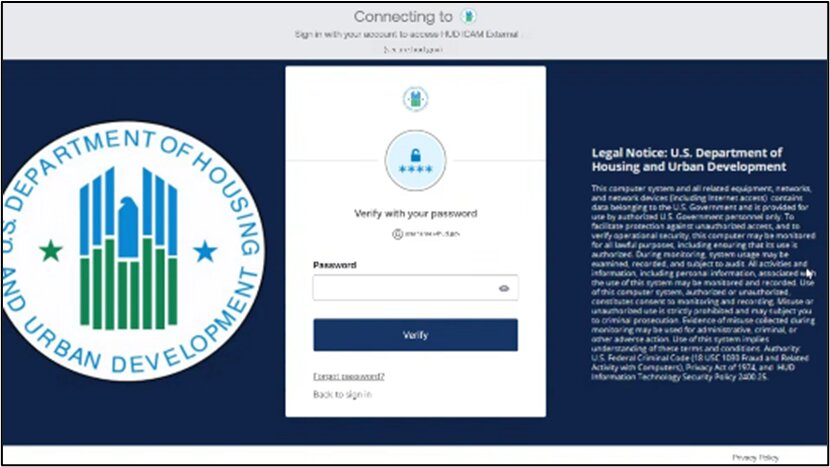
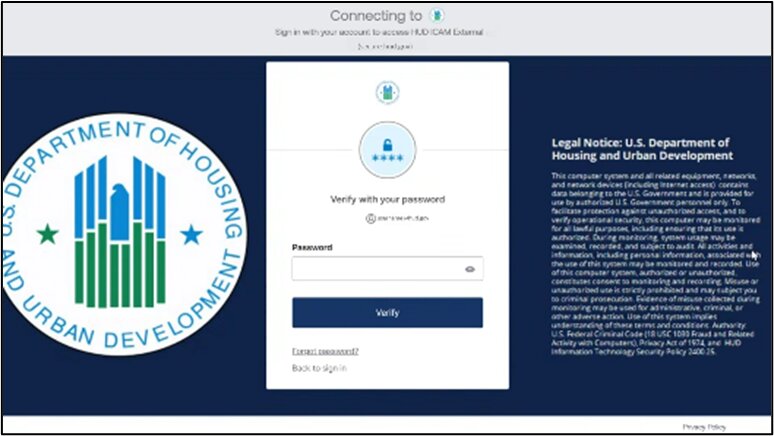
Enter your password in the text box and click Verify.
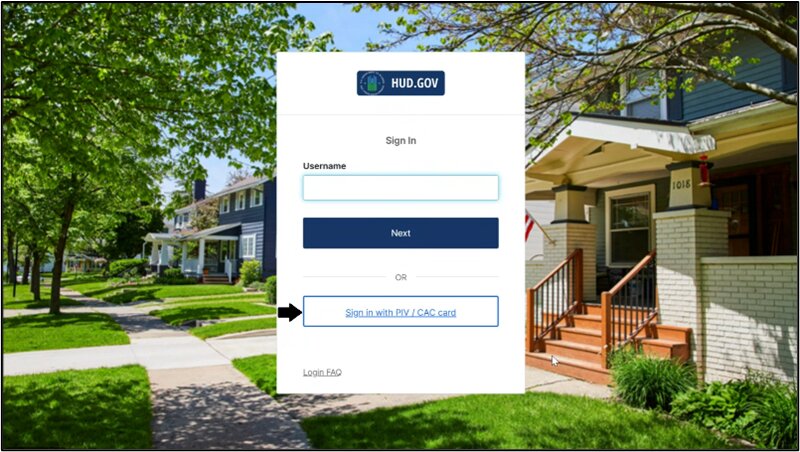
How do I sign in as an internal user with my PIV / CAC card?
-
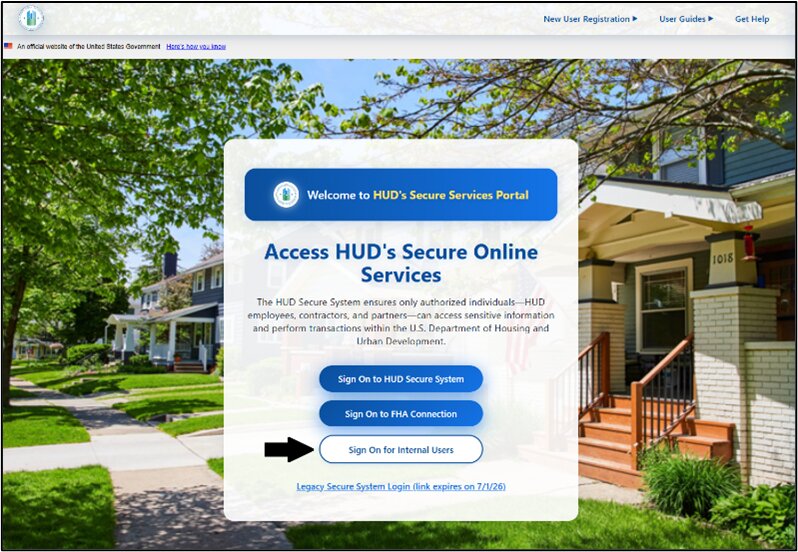
Access the hudapps.hud.gov/hud/ URL, then select the Sign On for Internal Users button.
-
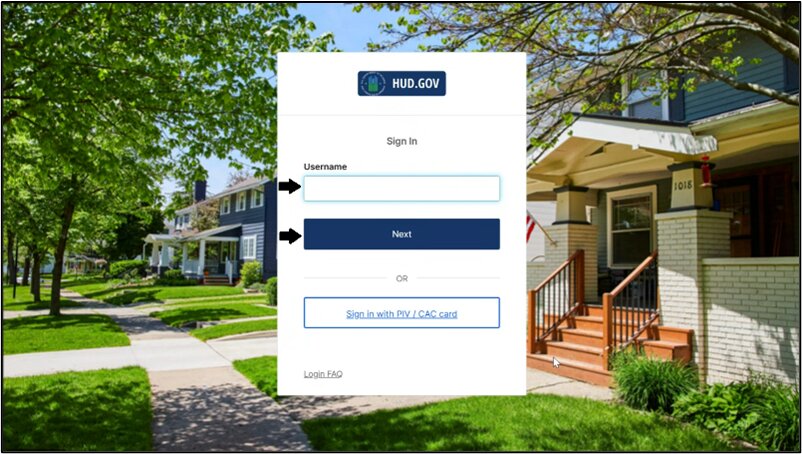
Click the Sign in with PIV / CAC card link.
-
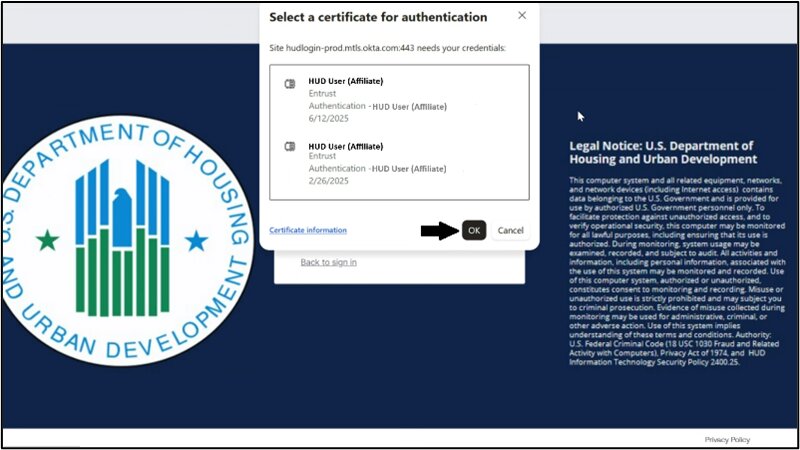
Insert your PIV / CAC card into your machine and click OK.
-
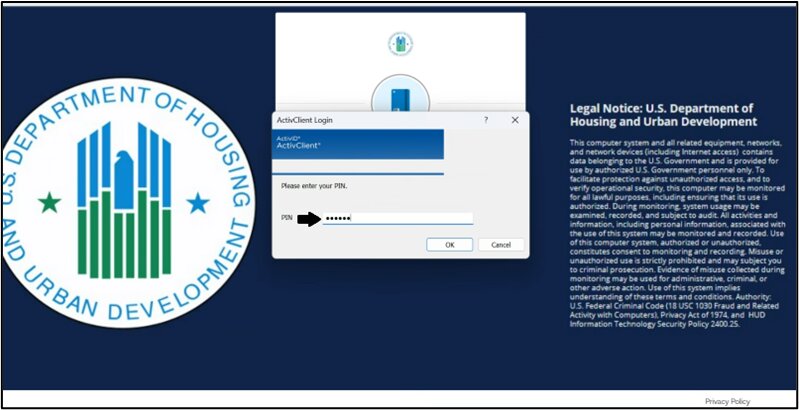
Enter your PIV / CAC card PIN code and select OK.
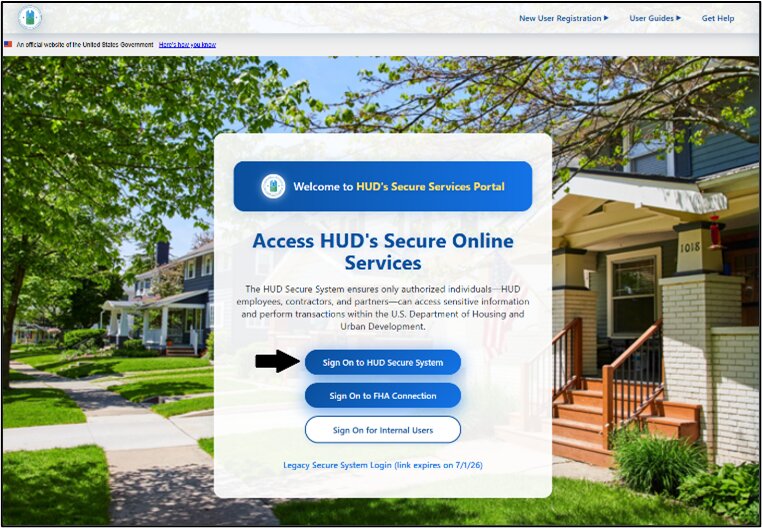
How do I sign in as an external user?
-
Access the hudapps.hud.gov/hud/ URL, then select the Sign On to HUD Secure System button.
-
Enter your external account username, then select the Next button.
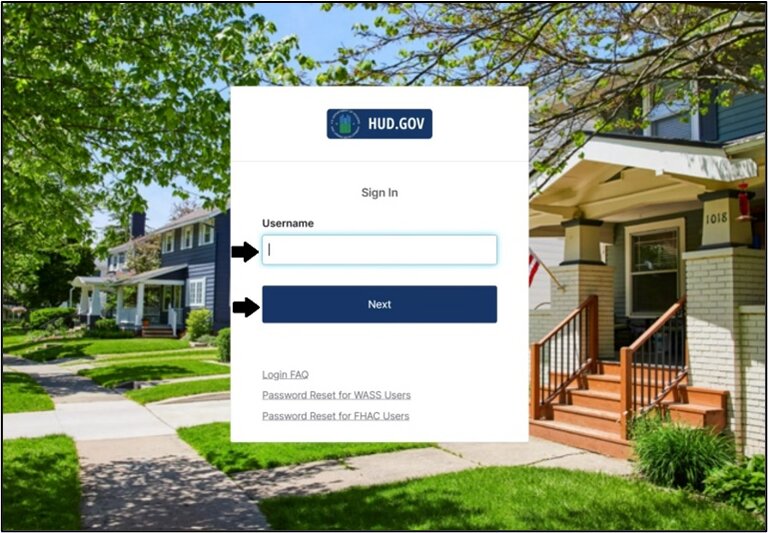
-
Enter your password in the text box and click Verify.
Whom do I contact if I have issues with my HUD EICAM Platform account?
Contact HUD Information Technology Services (HITS) Help Desk (Phone: 1-888-297-8689 or 202-708-3300) with any issues.
Note for administrators: Provide your help desk or IT department contact details to ensure users can reach you in case of any issues with the HUD EICAM Platform account.
What is the HUD EICAM Platform plugin?
The HUD EICAM Platform plugin is a browser application you can install and use with your web browser. These plugins are sometimes called Browser Extensions (Chrome and Safari) or Add-Ons (Mozilla Firefox).
Do I have to use the HUD EICAM Platform plugin?
Your company’s IT admin decides if you can access the plugin. Contact HUD Information Technology Services (HITS) Help Desk (Phone: 1-888-297-8689 or 202-708-3300) for more information.
The HUD EICAM Platform recommends using the HUD EICAM Platform plugin because it can help you access your apps faster than through the web Dashboard. The HUD EICAM Platform plugin can autofill usernames and passwords for apps where the admin has configured a username or password for you.
Note to administrators: Customize this section based on the HUD EICAM Platform implementation.
How can I customize the HUD EICAM Platform Dashboard?
You can customize the HUD EICAM Platform Dashboard by adding sections, changing between list and grid view, and sorting apps. For customization information, refer to the Work with Apps section of the End User documentation.
Why am I still signed in to a few apps but logged out of the HUD EICAM Platform?
The HUD EICAM Platform doesn’t automatically sign you out of your applications when you sign out of the HUD EICAM Platform session. Each app has its session lifetime, and you can manually sign out of the app after completing your task.

Security & MFA
What is Multi-Factor Authentication?
Multi-factor authentication (MFA) is a security practice that requires more than one authentication method from different categories of credentials to verify a user’s identity. The factor in MFA refers to the process of verifying your identity. The most basic type of factor is your password. HUD may choose to implement more factors to complement your password.
For example, when HUD implements MFA, you may sign in to a system using your password (what you know) and then using a separate six-digit number that is sent to your phone (what you have).
What are the benefits of MFA?
MFA adds an extra layer of security to your account. If hackers access a user’s credentials, they still require access to the user’s phone, the HUD EICAM Platform Verify app, or security key before hackers can access your company’s data. MFA makes it hard to hack your account.
Which MFA factors does the HUD EICAM Platform support?
The HUD EICAM Platform supports many factors, such as passwords, Phishing-resistant MFA such as Okta FastPass and FIDO2. For a detailed list of supported factors, refer to the HUD EICAM Platform MFA Factors section.
What is the HUD EICAM Platform Verify app?
The HUD EICAM Platform Verify app is an MFA app developed by HUD that protects your data, ensuring that only you can access your app accounts. You can install the HUD EICAM Platform Verify app on mobile and desktop devices.
Depending on HUD’s configuration, you can use the HUD EICAM Platform Verify app to confirm your identity using a push notification sent to your iOS or Android mobile device. If your sign-in page displays Sign in with the HUD EICAM Platform FastPass, you can use the HUD EICAM Platform Verify app to sign in without using a username or password.
On all devices enrolled in FastPass, the HUD EICAM Platform Verify app assesses the security of your device. For more information about the HUD EICAM Platform Verify app, refer to the end-user documentation.
How can I download the HUD EICAM Platform Verify app?
The HUD EICAM Platform Verify app is available for Windows, iOS, and Android. Select your platform below.
Open the App Store and search "Okta Verify"
Publisher: Okta, Inc.Open Google Play and search "Okta Verify"
Publisher: Okta, Inc.For additional installation guidance, refer to the HUD EICAM Platform Verify app documentation.
How can I set up and register my MFA?
When you access the HUD EICAM Platform Dashboard or a specific app protected by the HUD EICAM Platform, and HUD requires MFA, the HUD EICAM Platform Dashboard prompts you to enroll in MFA.
After you enroll in MFA, you might have the option to enroll using another security method. The HUD EICAM Platform recommends enrolling in an optional factor, if available.
Can users register two devices for MFA?
If HUD has enabled these security methods, you may register multiple devices, security keys, and biometrics for MFA.
How do I reset my MFA?
- Sign in to the HUD EICAM Platform account using your username and password.
- If prompted, add your second factor for authentication.
- Once you’re logged in, select your name → Settings.
- Select Remove for the factor you want to reset.
- For security, you may be prompted to provide your password, second factor, or both.
- Select the factor you want to reset.
How do you troubleshoot when your phone freezes on the Enrolling Your Device screen?
If you get stuck in a loop when attempting to register using SMS, Email, or QR code and do not get any code or push notifications, your device is not enrolled correctly. You must reset the MFA from your account, uninstall the HUD EICAM Platform Verify app on the device, install it again, and then set up the MFA.
Do I need to set up MFA again if I registered previously?
You don’t need to set up your security method again unless you reset it.
What are the different ways users can access the HUD EICAM Platform-integrated applications?
- Go to [URL], sign in using your credentials, and select the application you want to access.
- Use the URL to access the application you want to access. The application redirects the user to the HUD EICAM Platform Sign-In page. If you already have a valid session, you can directly access the application.

FastPass
How do I use MFA with my internal username?
-
Access the hudapps.hud.gov/hud/ URL, then select the Sign On for Internal Users button.
-
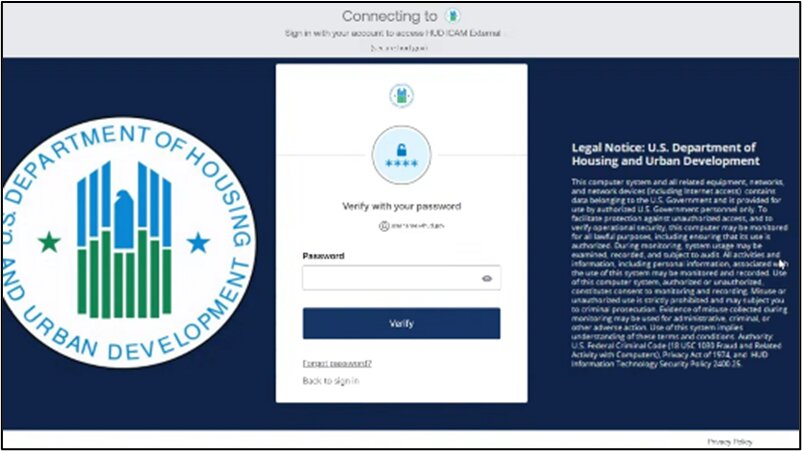
Enter your username and click Next.
-
Enter your password and click Verify.
-
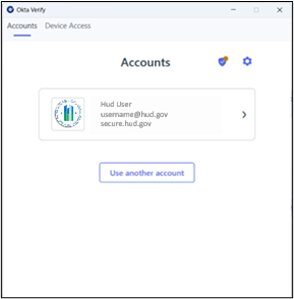
Click your account tile that appears on the page.
-
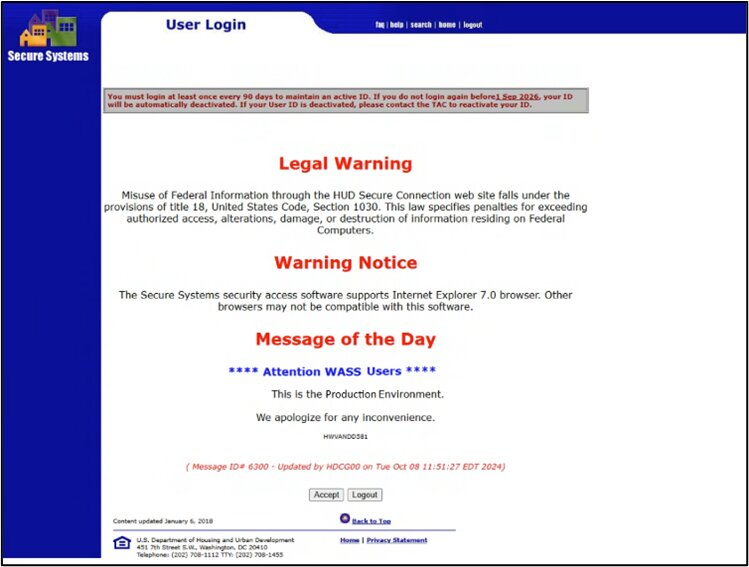
You will be directed to the application and logged in successfully.
How do I use MFA with my internal username and PIV / CAC Card?
-
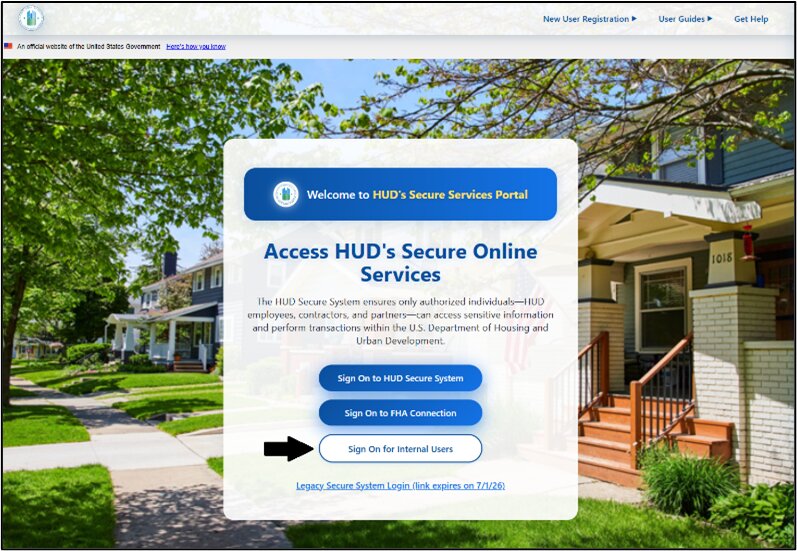
Access the hudapps.hud.gov/hud/ URL, then select the Sign On for Internal Users button.
-
Click the Sign in with PIV / CAC card link.
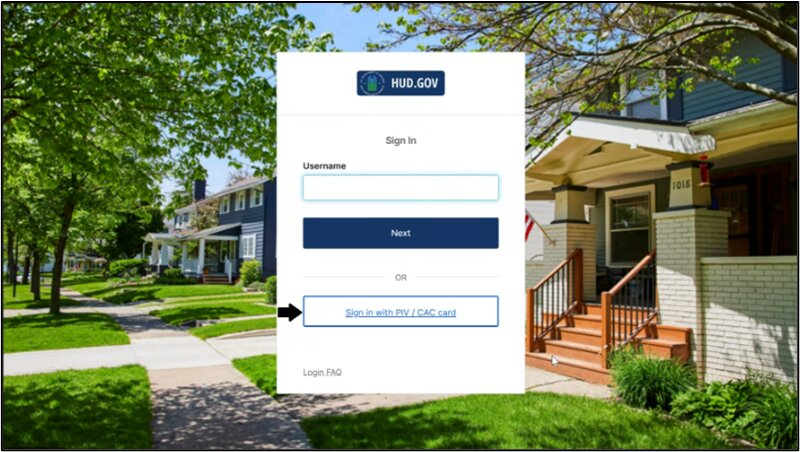
-
Insert your PIV / CAC card into your machine and click OK.
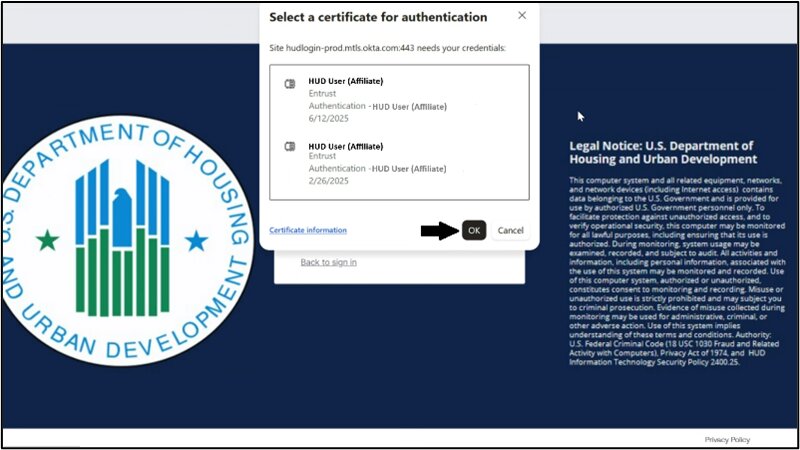
-
Enter your PIV / CAC card PIN code and select OK.
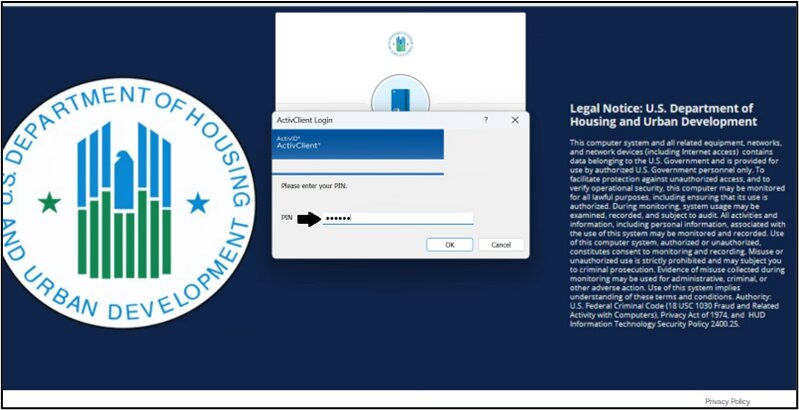
How do I use MFA with my external username?
-
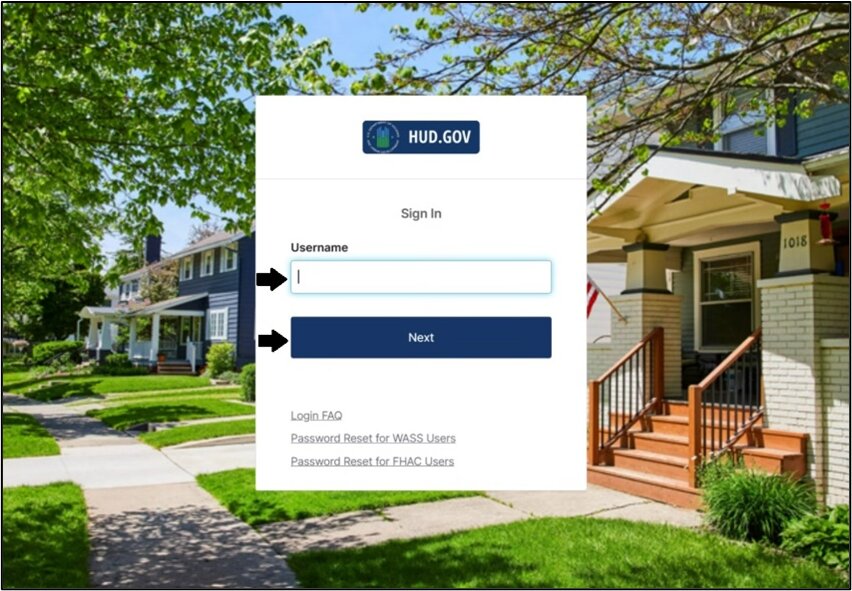
Access the hudapps.hud.gov/hud/ URL, then select the Sign On to HUD Secure System button.
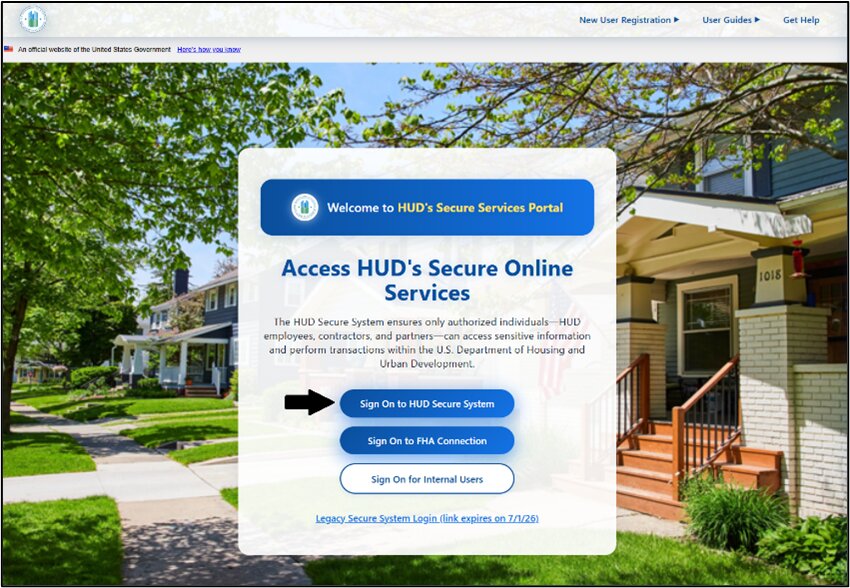
-
Enter your external account username, then select the Next button to authenticate with Okta FastPass.
-
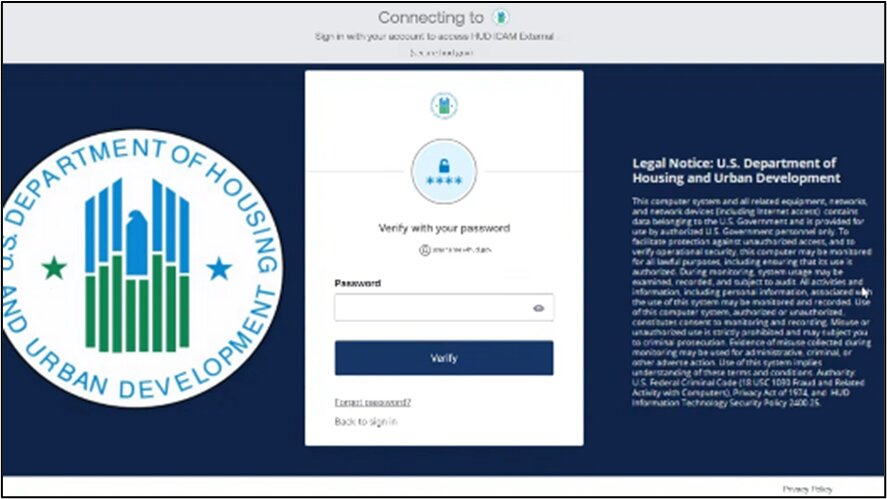
Enter your password in the text box and click Verify.
-
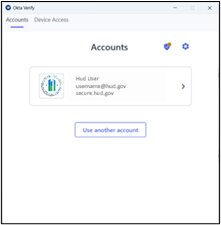
Click your account tile that appears on the page.
What is the Sign-in with the HUD EICAM Platform FastPass option?
Note: The Sign in with FastPass button is not yet enabled and will be available in a future release.
The Sign in with the HUD EICAM Platform FastPass button allows you to sign in without entering your username. If your administrator has set up the HUD EICAM Platform FastPass for HUD, you can sign in to the HUD EICAM Platform with device biometrics or without additional action.
To use the HUD EICAM Platform FastPass, you must download and set up the HUD EICAM Platform Verify app on your device.
For more information about the HUD EICAM Platform Verify apps, please see the HUD EICAM Platform Verify app documentation for end users.
Can I use the HUD EICAM Platform FastPass without the HUD EICAM Platform Verify app?
No, you can’t use the HUD EICAM Platform FastPass without the HUD EICAM Platform Verify app.
Where is the biometric information stored?
The HUD EICAM Platform doesn’t store any biometric information. Biometric information generates a public and private key pair; the public key goes to the HUD EICAM Platform, whereas the private key stays on your system’s Trusted Platform Module (TPM) layer or secure enclave of your iOS system. Biometric information is not shared with the HUD EICAM Platform.

Resources
How to submit feedback
Link to the feedback mechanism
Related topics
- HUD EICAM Platform FastPass FAQ
- HUD EICAM Platform End User Documentation
- Available QRGs:
- Set up the HUD EICAM Platform Verify app
- Use the HUD EICAM Platform Verify app
- Sign in using the HUD EICAM Platform FastPass
- Self-Service Account Recovery and Password Reset
- Set up Password Sync for macOS
- Set up Desktop MFA for Windows
- Enroll Yubikey
Contact Us
PIH-REAC Technical Assistance Center (TAC)
- Phone: 1-888-245-4860
- Fax: 202-485-0280
- Hours: Monday through Friday, 7:00am – 8:30pm EST
- Email: REAC_TAC@hud.gov (response by return email or telephone)
Phone Menu Options: When calling, choose the best option for your request. Be logged into the REAC system and be ready to share: Login ID number, PHA Code, TIN number, FHA number, FYE, Error Message, and any other specific information needed.
- Press 1: Unable to log in or assistance with user ID, including password resets, registration, key codes, business partner maintenance, or system administration
- Press 2: Assistance with financial inquiries for either Multifamily or Public Housing properties
- Press 3: NSPIRE inspectors, inspections, or any other inspector issues
- Press 4: PIC issues
- Press 9: Assistance with any other issue, including Multifamily or Public Housing queries
- Press 0: To repeat this menu
If you are a Lender or Broker, send an email to sfadmin@hud.gov.
Mailing Address:
U.S. Department of Housing and Urban Development (HUD)
Office of Public and Indian Housing
Real Estate Assessment Center
550 12th Street, SW, Suite 100
Washington, DC 20410
Further assistance can be obtained through the REAC TAC Customer Community Portal.
FHA Resource Center
- Email: answers@hud.gov
- Phone: (800) CALL-FHA (1-800-225-5342)
- Hours: 8:00 a.m. to 8:00 p.m. ET, Monday through Friday (all non-Federal holidays)
- Online FAQ: www.hud.gov/answers
Multifamily Resource Center
- General Information: 1-800-955-2232 (Mon–Fri, 9am–5pm EST)
- Complaints/Issues: 1-800-MULTI-70 (1-800-685-8470)
- Email: answers@hud.gov